SharePoint remains the foundational backbone for collaborative resources and project tracking in companies of all sizes. However, despite Microsoft’s continuous efforts to modernize the modern UI experience, standard setups often hit structural roadblocks when it comes to sophisticated layout formats. A common pain point is the struggle to transform basic SharePoint list items into a highly descriptive, visual calendar timelines that clearly maps out overlapping project stages, active milestones, and team schedules.
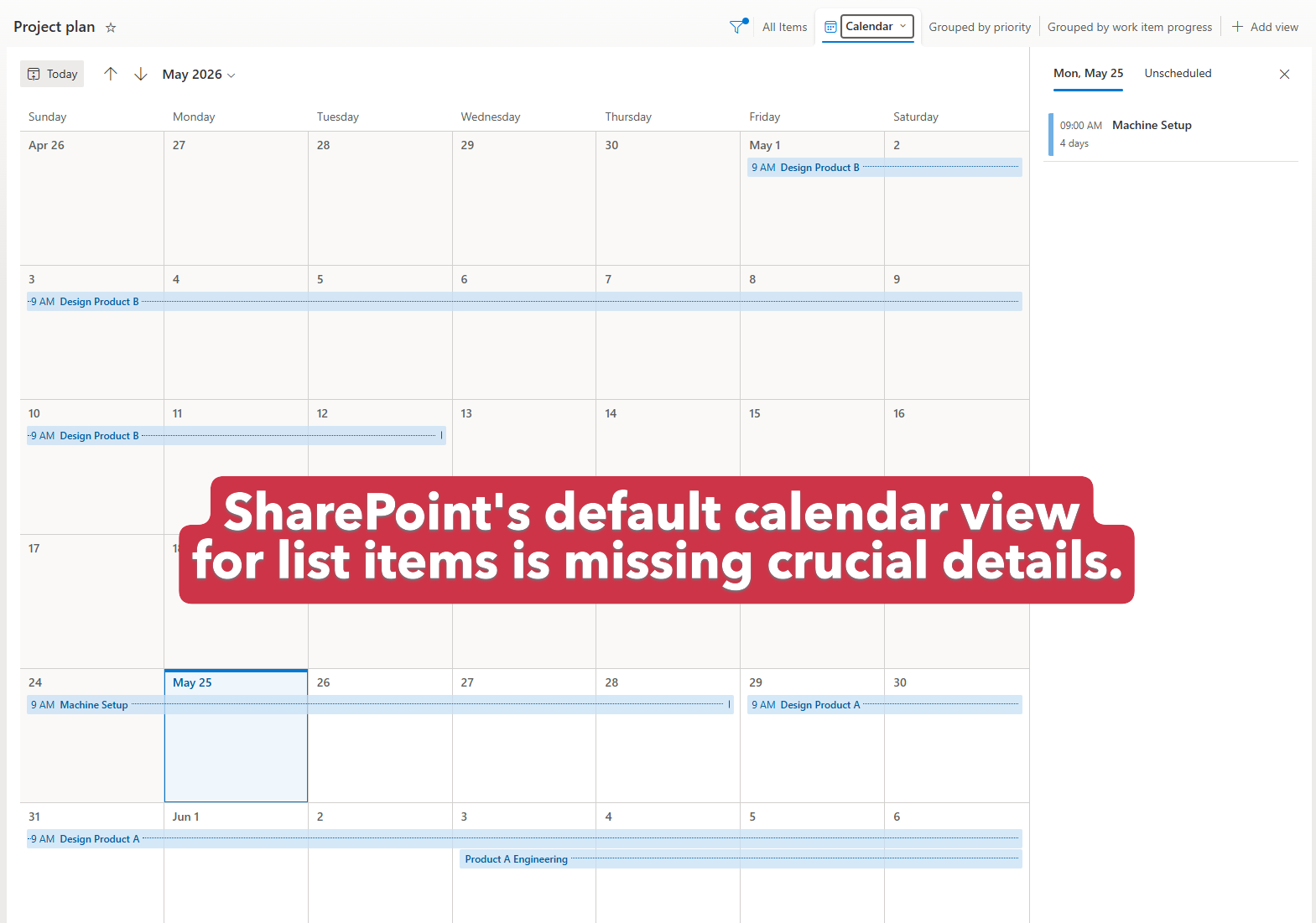 Traditional monthly grid view in traditional SharePoint calendars can obscure overlapping stages and cut off event details.
Frustrated by the limitations of SharePoint calendar layouts, many organizations resort to external tools, calendar plugins, or third-party scheduling platforms just to visualize their timelines. This is far from ideal. Not only does it introduce recurring subscription fees and security issues, but it also creates disjointed data silos. Without complex custom integrations, project lists in SharePoint do not automatically synchronize with external services. This leads to tedious double-data entry, manual copy-pasting, and inevitable human error.
The good news? The ideal solution doesn't require leaving SharePoint.
By leveraging custom .aspx application files, you can build full-fledged single page web tools that render directly inside your SharePoint library context. There are no extra hosting costs, your data lives securely in one central location, and users benefit from seamless, automatic SharePoint single sign-on.
Solution Design: A Sleek Calendar Application
With the rise of advanced generative coding agents, there is no longer any excuse to tolerate generic, inefficient interfaces. By iterating with the right prompts and libraries, any developer or administrator can build clean, feature-rich web applications that communicate directly with SharePoint's built-in REST API.
To solve the visualization bottleneck, I designed the SharePoint Modern Timeline Calendar. Before walking through the quick installation, let's explore its core design choices and architectural boundaries.
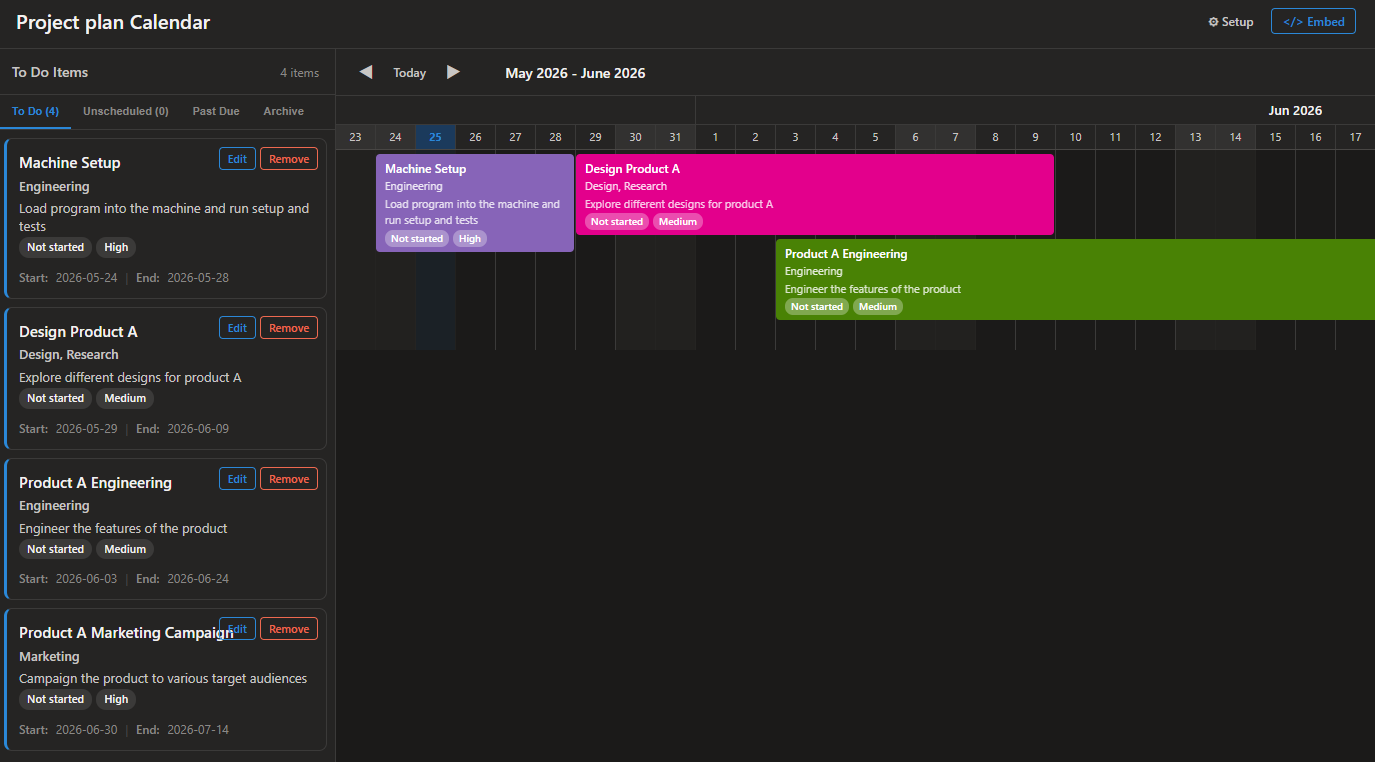 The redesigned calendar featuring a Gantt-style timeline layout.
Key Design Choices
- Lightweight, Client-Side Architecture: Runs directly inside the browser using clean HTML, CSS, and modern JS. No complex SPFx build pipelines or package catalog deployments are necessary.
- Guided Setup Wizard: Features an intuitive first-time setup interface that maps existing list fields to UI styling components on first load.
- Seamless Embed Mode: Ready to be cleanly integrated as an iframe web part inside existing SharePoint modern pages with automatic frame-detection that auto-hides unnecessary shell chrome.
- Local CSV Export & State Storage: Seamlessly exports schedule mappings, configurations, and user actions into a downloadable
.csvfile format for offline data review. - Direct Sync to SharePoint: Connects directly to native REST APIs to write visual updates and changes back to the source SharePoint list dynamically.
- No External Server Dependencies: Operates entirely within the user's browser, eliminating the security and maintenance costs of a dedicated database or backend layer.
- Automatic Identity & Security: Automatically inherits the active SharePoint user's access permissions and security contexts without separate logins.
- Fluid, Responsive Layout: Adapts beautifully to mobile touchscreens and desktop screens with native support for system Dark Mode.
Solution Limitations
- CSV Configuration State: Offline data backups and configurations rely on local file structures, which are not as robust as transactional SQL databases.
- Browser-Side Compute Limits: Since filtering, calendar rendering, and date calculations occur entirely client-side, performance may degrade slightly if a site attempts to render tens of thousands of items simultaneously.
- Administrative Permissions: The upload step requires an administrator to temporarily enable custom scripting on the target site collection so SharePoint knows to run the ASPX application in the browser window.
Quick Installation & Setup Guide
Setting up the Modern Timeline Calendar on your own site takes less than five minutes. Follow these straightforward steps to get started:
1. Enable Custom Scripting (Prerequisite)
To prevent SharePoint from forcing the SPCalendar.aspx file to download as static text, a site administrator must temporarily allow custom scripts:
- Go to your SharePoint Admin Center (e.g.,
https://yourtenant-admin.sharepoint.com). - Navigate to Sites > Active Sites and select your target site collection.
- Click the Settings tab, scroll to Custom script, and switch the toggles to Allowed.
- Click Save to apply the configuration.
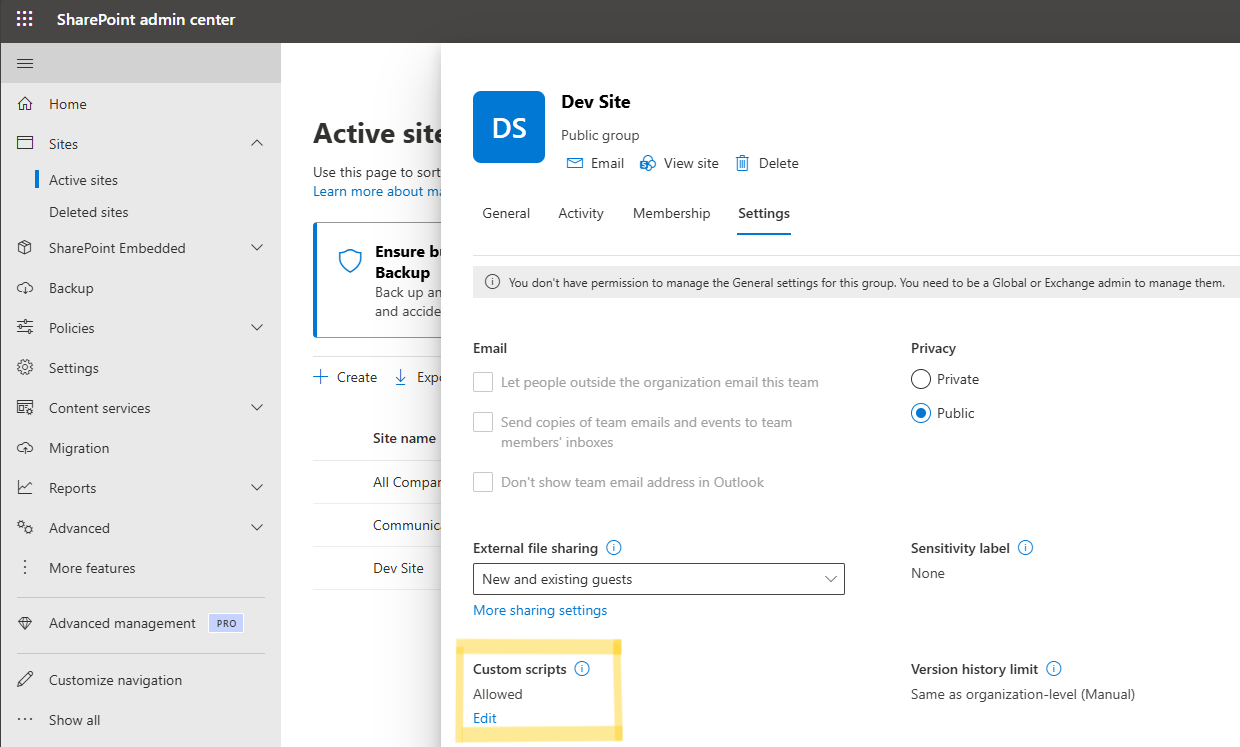 Allow Custom Scripts in SharePoint Settings Enabling Custom Scripts in the Active Site settings under the SharePoint Admin Center.
Note: SharePoint automatically disables custom script settings after 24–48 hours for tenant security. This is expected! The scripting permission is only verified during the initial file upload process; the app will continue to run normally once uploaded.
2. Upload the ASPX Application File
Deploying the file is as simple as dragging and dropping the compiled page:
- Locate the
SPCalendar.aspxfile in your downloaded directory. - Open your SharePoint site and navigate to the Documents library, and then to a folder you would like to place the calendar page files to live in.
- Drag and drop the
SPCalendar.aspxfile into the library to upload it directly.
3. Map Fields with the Guided Wizard
Launch the application in your browser by clicking on the uploaded SPCalendar.aspx file. On initial load, the Setup Wizard will open automatically:
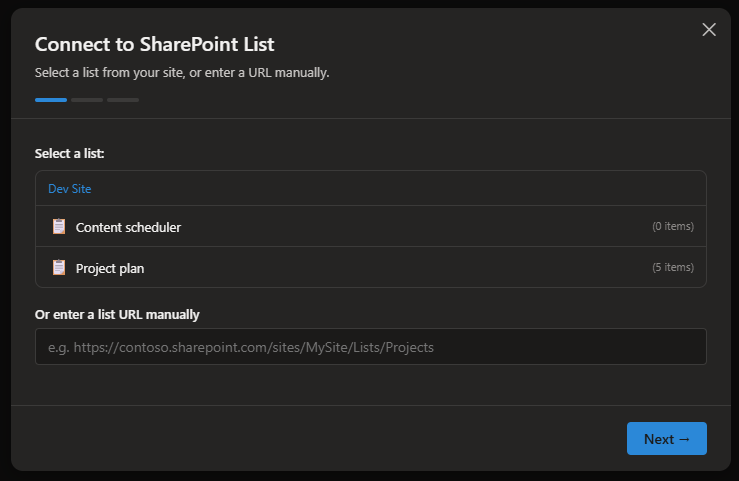 The guided wizard automatically detects the lists on your SharePoint site.
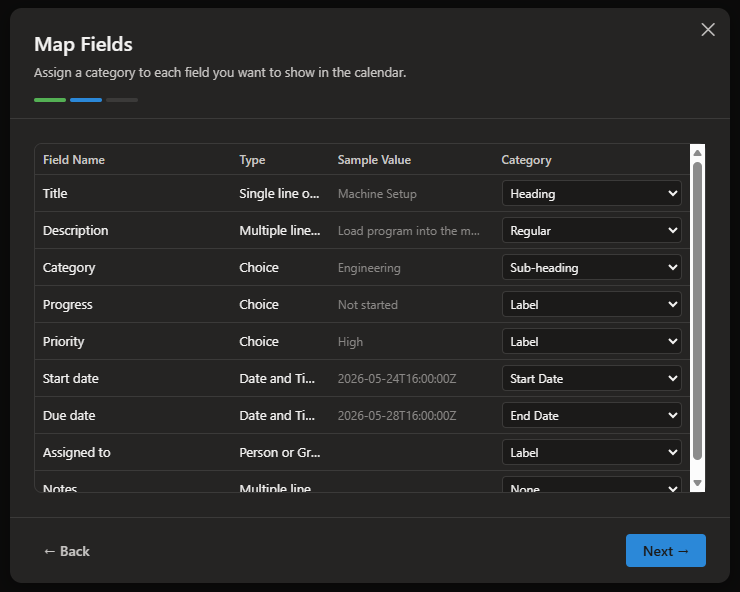 Map visual calendar fields (heading, subheading, badges, description) directly to your list columns.
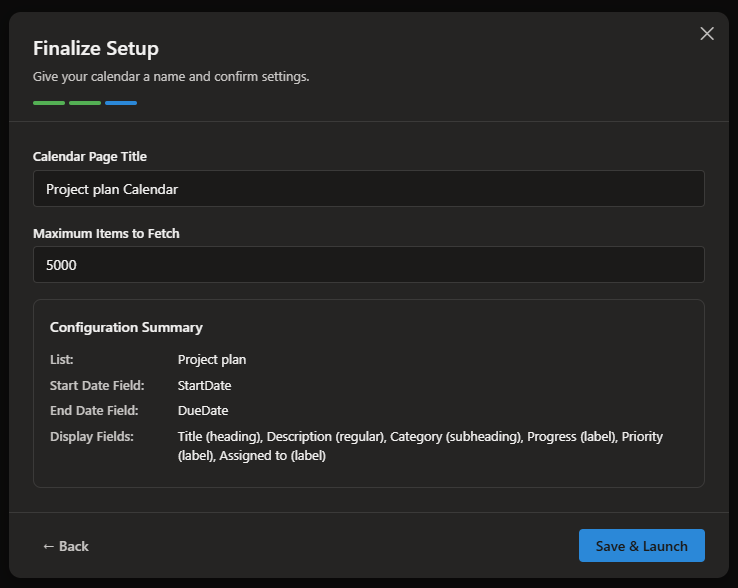 Review the mapped visual parameters and click "Save Configuration" to generate your timeline.
4. Optional: Embed into Modern SharePoint Pages
If you want your timeline calendar to show up on another SharePoint page, like the Home page:
- Click the Embed
</>button in the upper header panel. - Copy the automatically generated iframe snippet to your clipboard.
- Edit your target SharePoint Modern page, insert an Embed Web Part, and paste the copied snippet.
- The system will automatically switch to card-frame mode, blending seamlessly with the page layout.
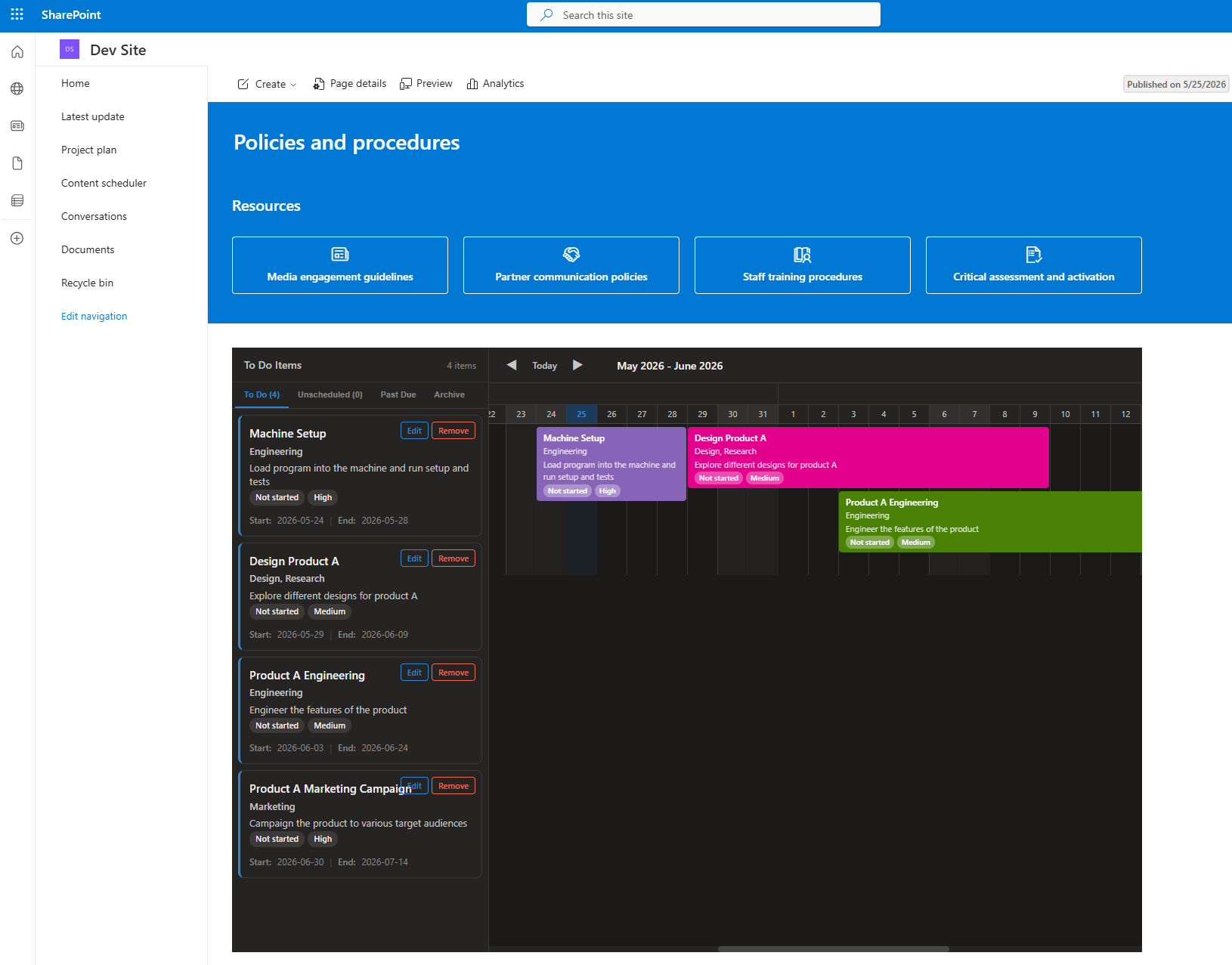 The timeline calendar dynamically embedded as a widget on a team's landing page.
Summary & Conclusion
By hosting a modern single page application directly inside SharePoint libraries as an ASPX file, companies can entirely bypass external SaaS dependencies and manual syncing headaches. This solution proves that with native client-side rendering and smart REST integrations, you can keep your data where it belongs while giving your team a premium, responsive timeline interface that rivals dedicated planning software.
The era of plain, restricted views is over. I highly encourage you to utilize modern coding assistance to design, experiment, and deploy your own customized SharePoint utility pages today!
Download the Enhanced Timeline Calendar for SharePoint
Ready to transform your SharePoint scheduling experience? Click below to download the single-file application and deploy it directly in your SharePoint site!